What it is and who it is for
Scan to Order is a mobile web app for restaurant guests. A guest sits down, scans the QR code on the table and lands in the restaurant's ordering flow (the demo restaurant is called Golden Bistro). From there they can browse the menu, send dishes to the kitchen, watch each dish's progress, call staff to the table and pay with the method they prefer.
It is built with React, TypeScript, Vite and Ant Design, implemented from Figma designs and tuned for a 375 px mobile viewport. The interface is in Vietnamese; the captions below quote the on-screen labels and translate them.
This is a working front-end demo. The menu is sample data and orders and payments are simulated in the browser. Nothing is sent to a real restaurant or payment provider. Every screenshot below was captured by an automated script that drives the real app through this flow in a 375 px viewport, so each image is the app's actual output.
The ordering flow, step by step
-
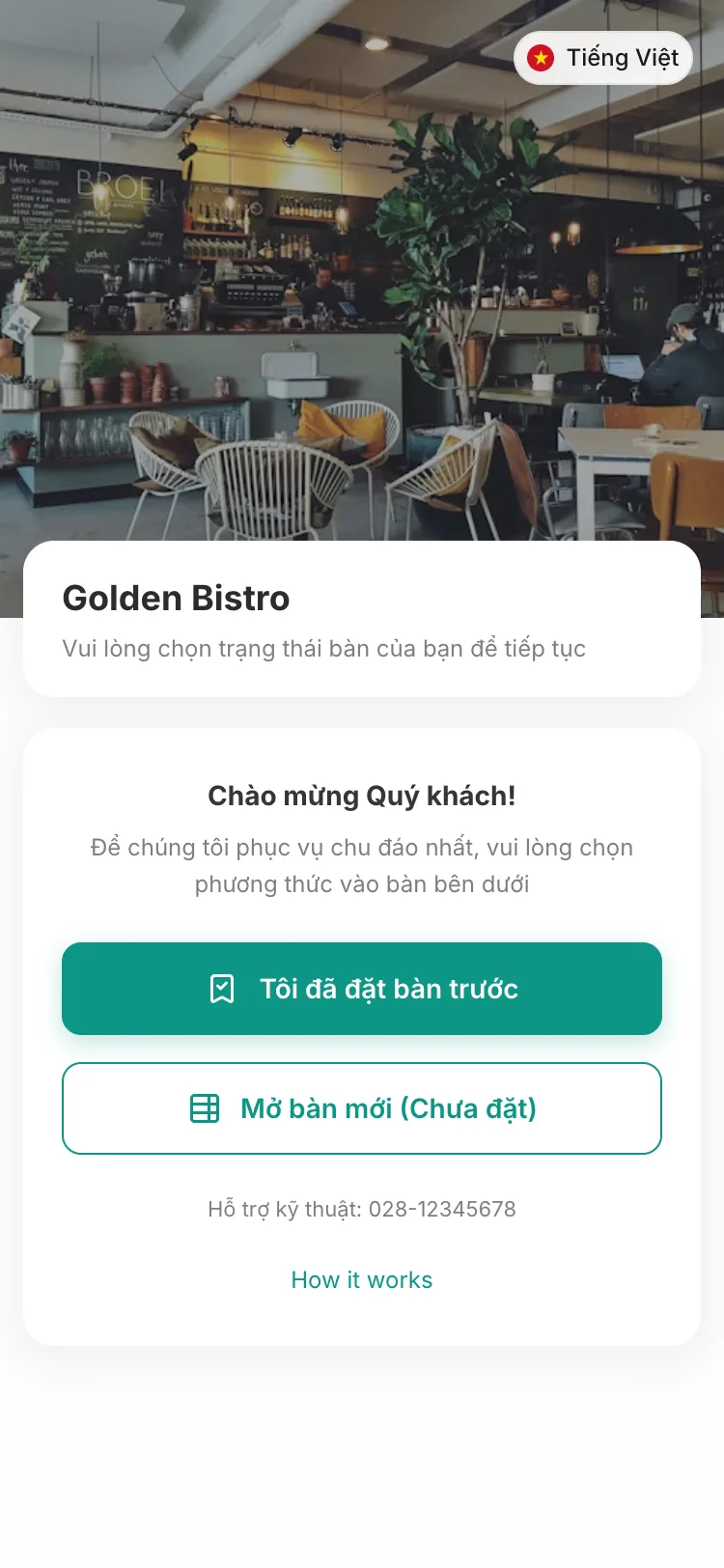
Step 1. Choose how you are seated. Pick “Tôi đã đặt bàn trước” (I booked ahead) or “Mở bàn mới” (open a new table). -
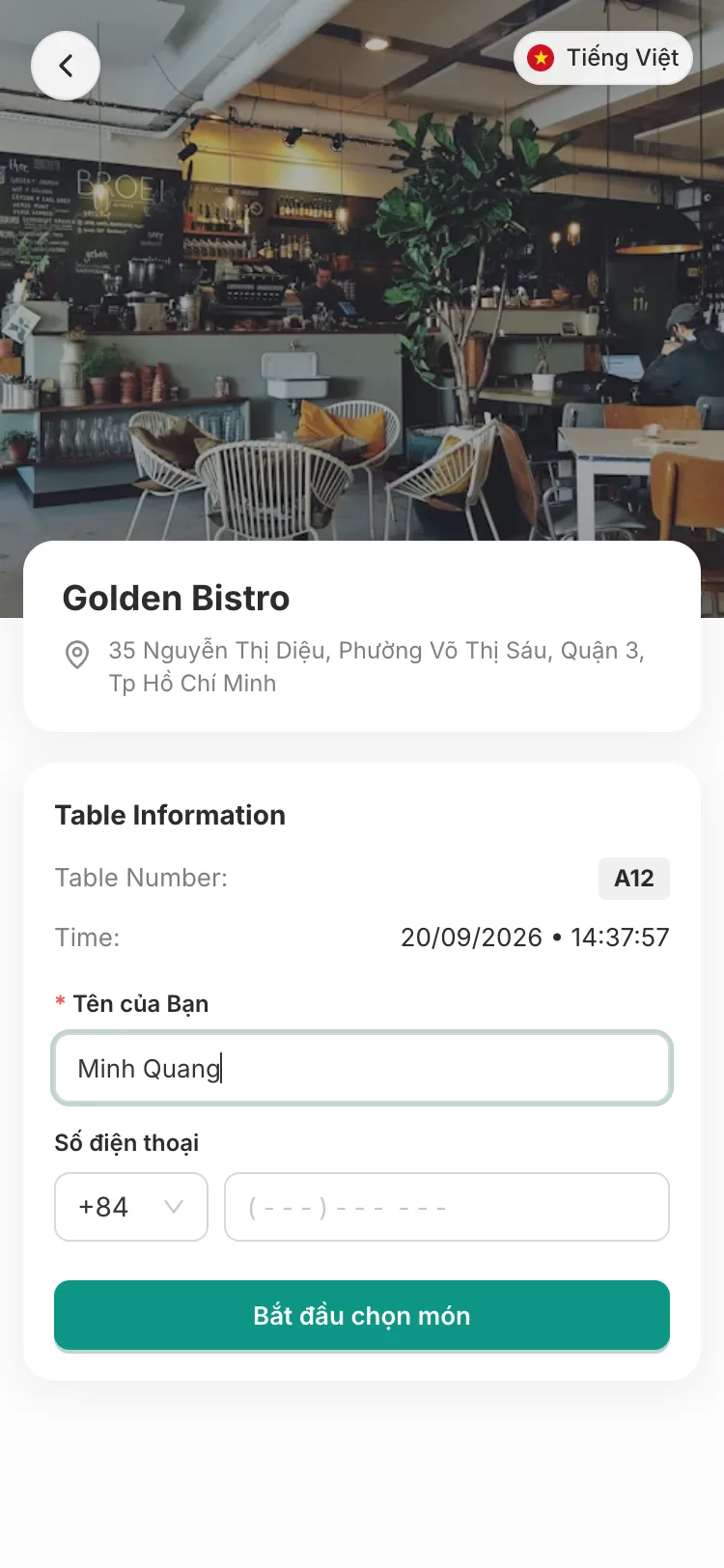
Step 2. Enter your name. Add a name, and optionally a phone number, to start the session for your table. -
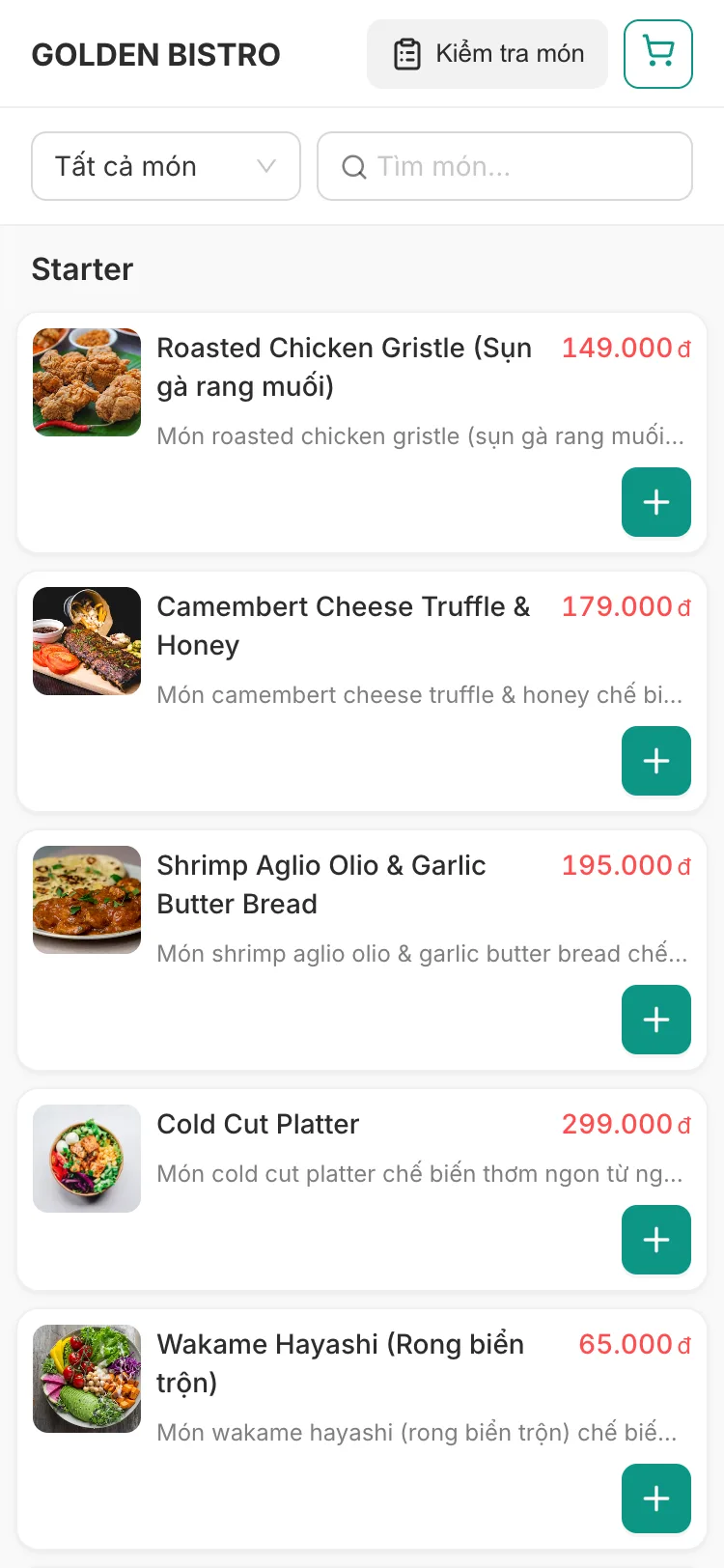
Step 3. Browse the menu. Every dish shows a photo, a short description and a price, with a + button to add it. -
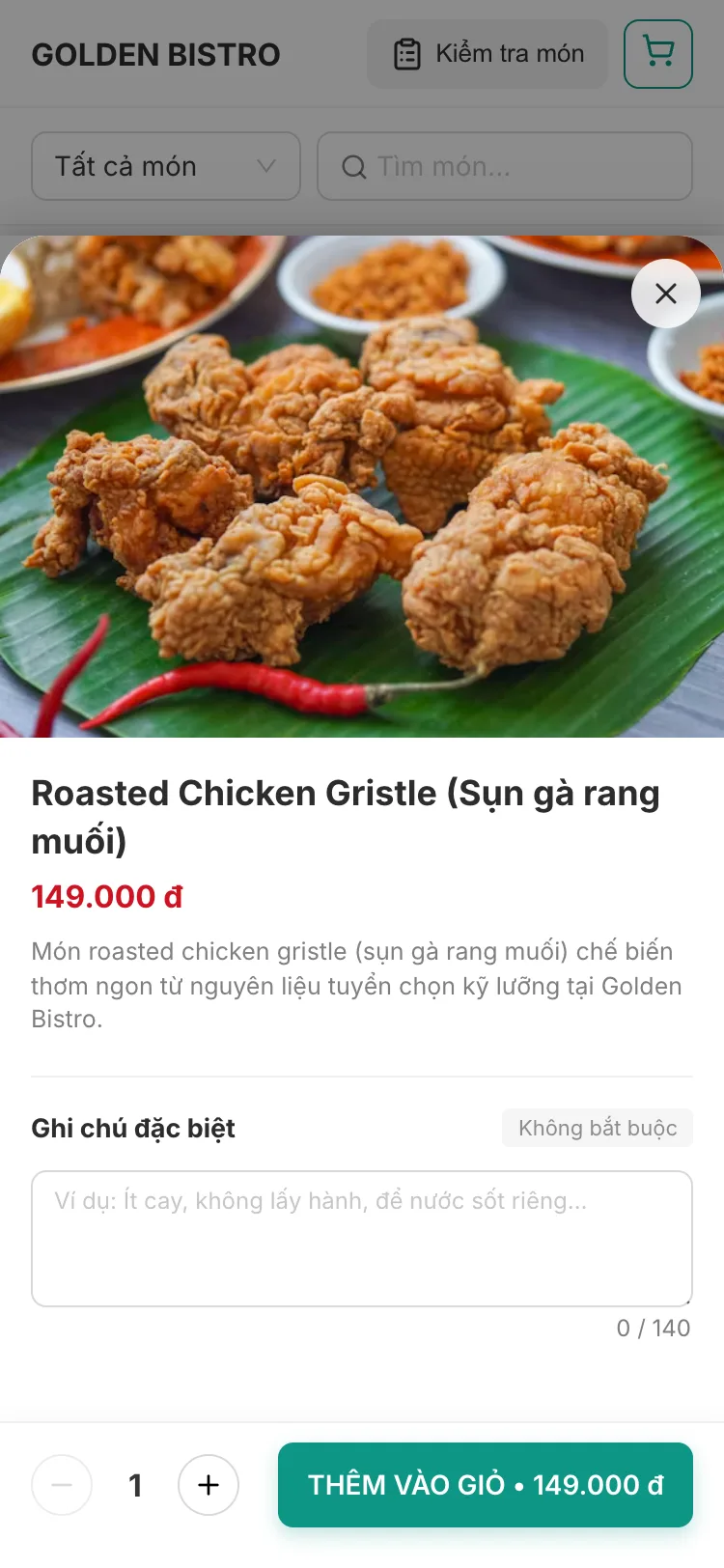
Step 4. Open a dish and add it. Leave a note for the kitchen, set the quantity and tap “Thêm vào giỏ” (add to cart). -
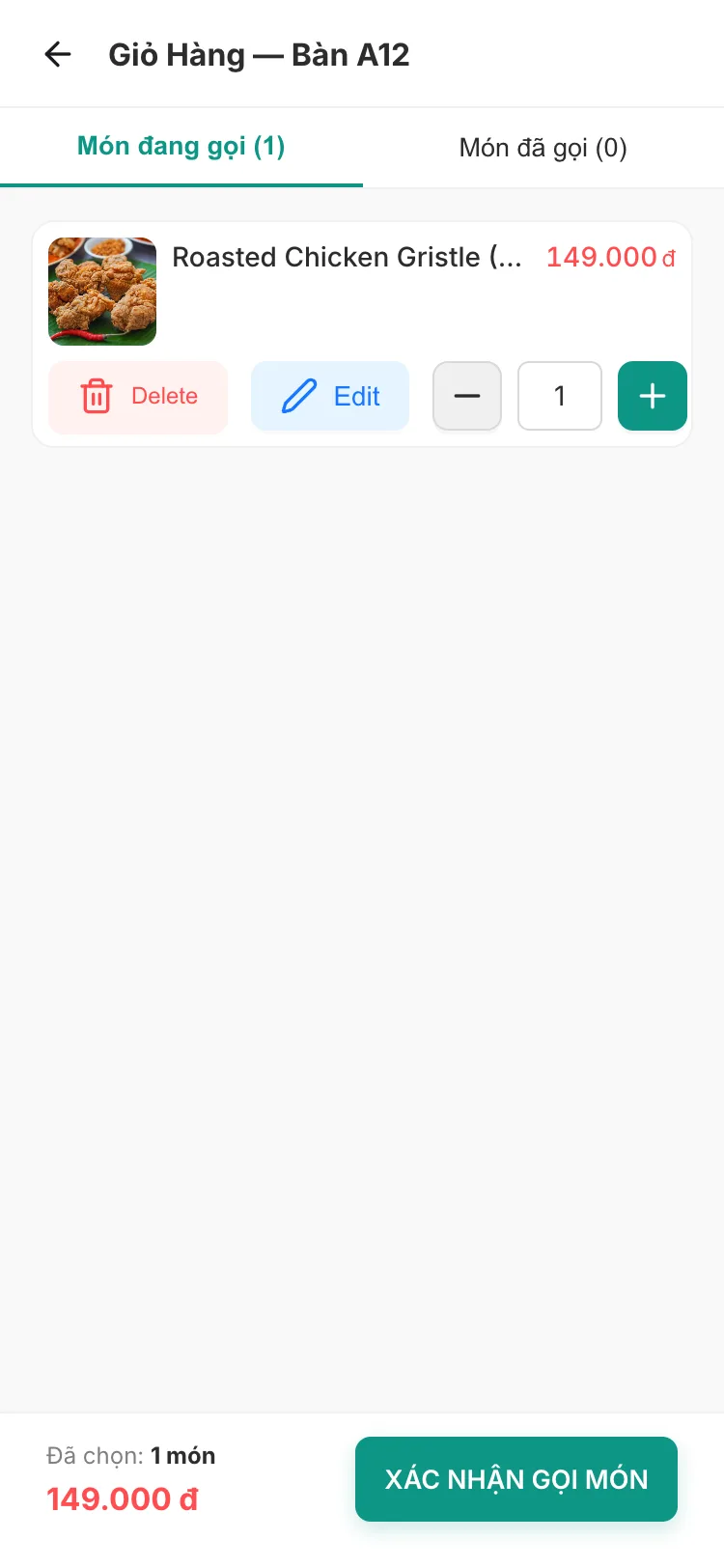
Step 5. Review the cart. Delete, edit or change quantities, then tap “Xác nhận gọi món” (confirm order). -
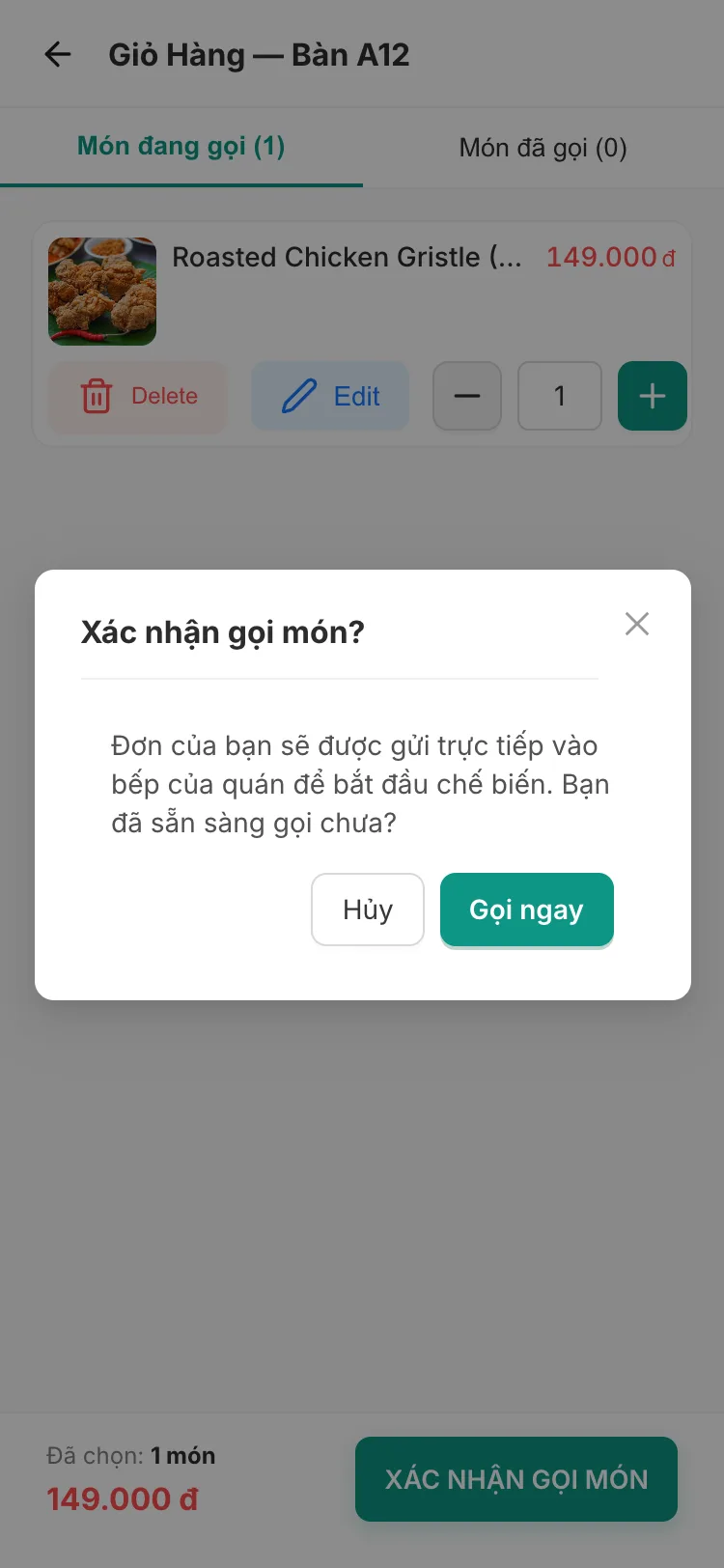
Step 6. Send the order to the kitchen. One confirmation dialog, then “Gọi ngay” (order now) places the order. -
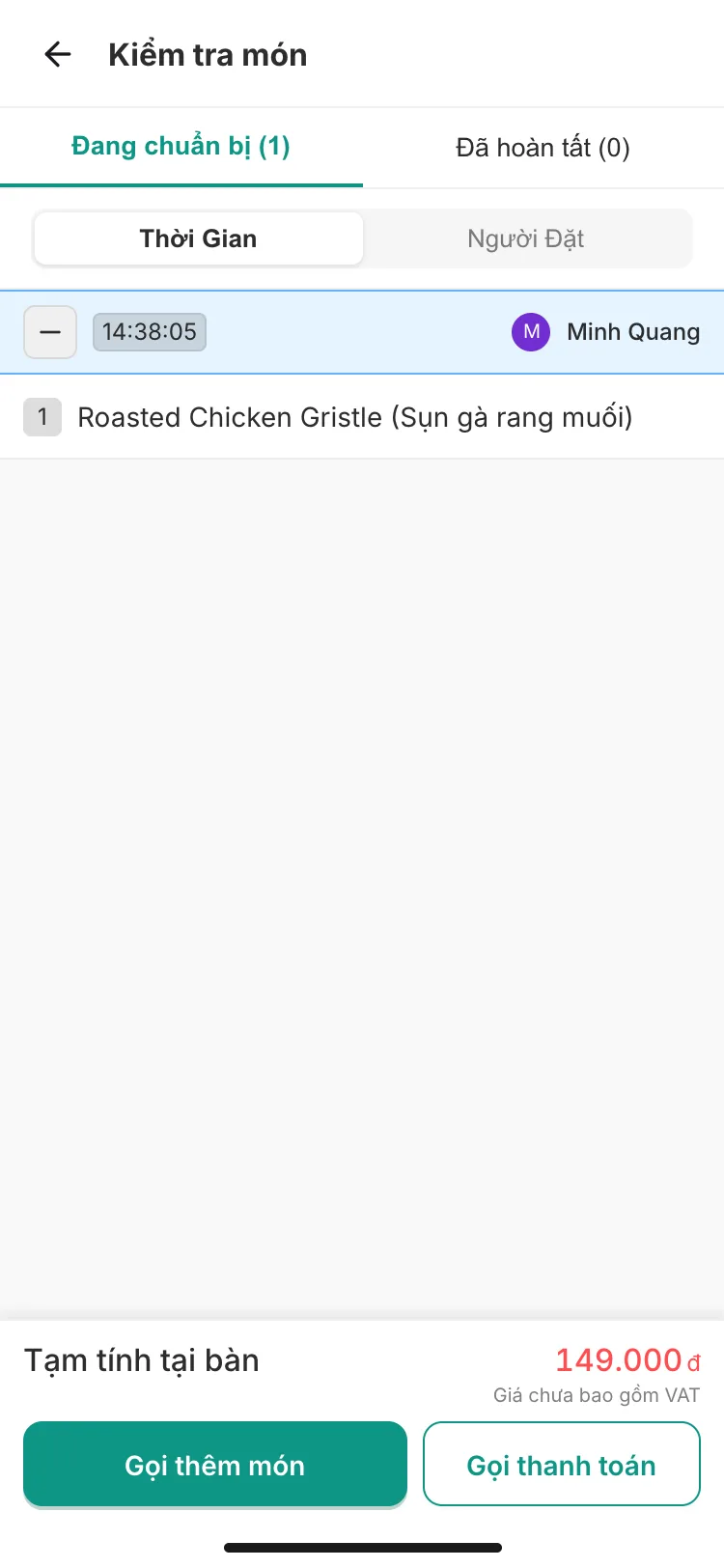
Step 7. Track your food. Each dish moves from “preparing” to “completed”, and you can order more at any time. -
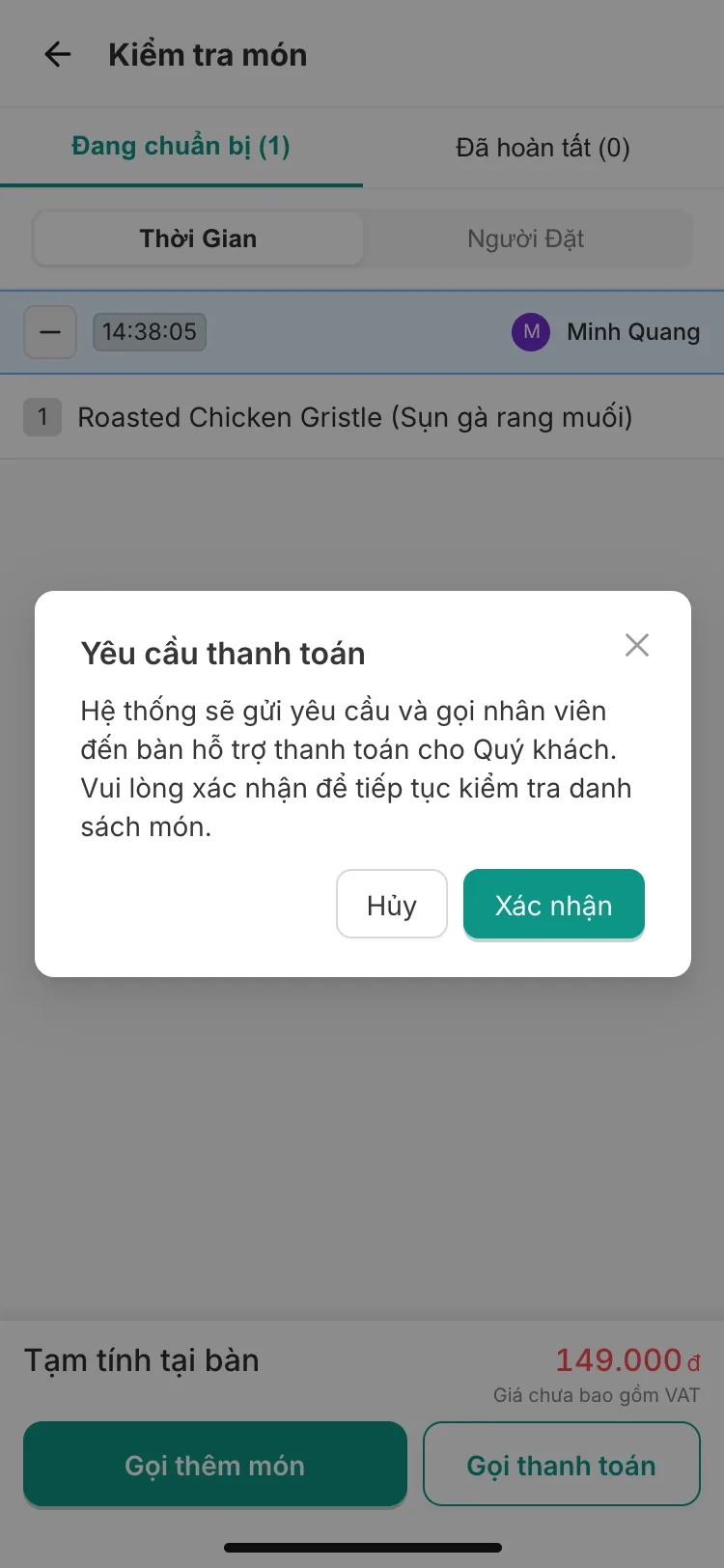
Step 8. Ask for the bill. “Gọi thanh toán” (request payment) opens a dialog saying staff will come to the table. -
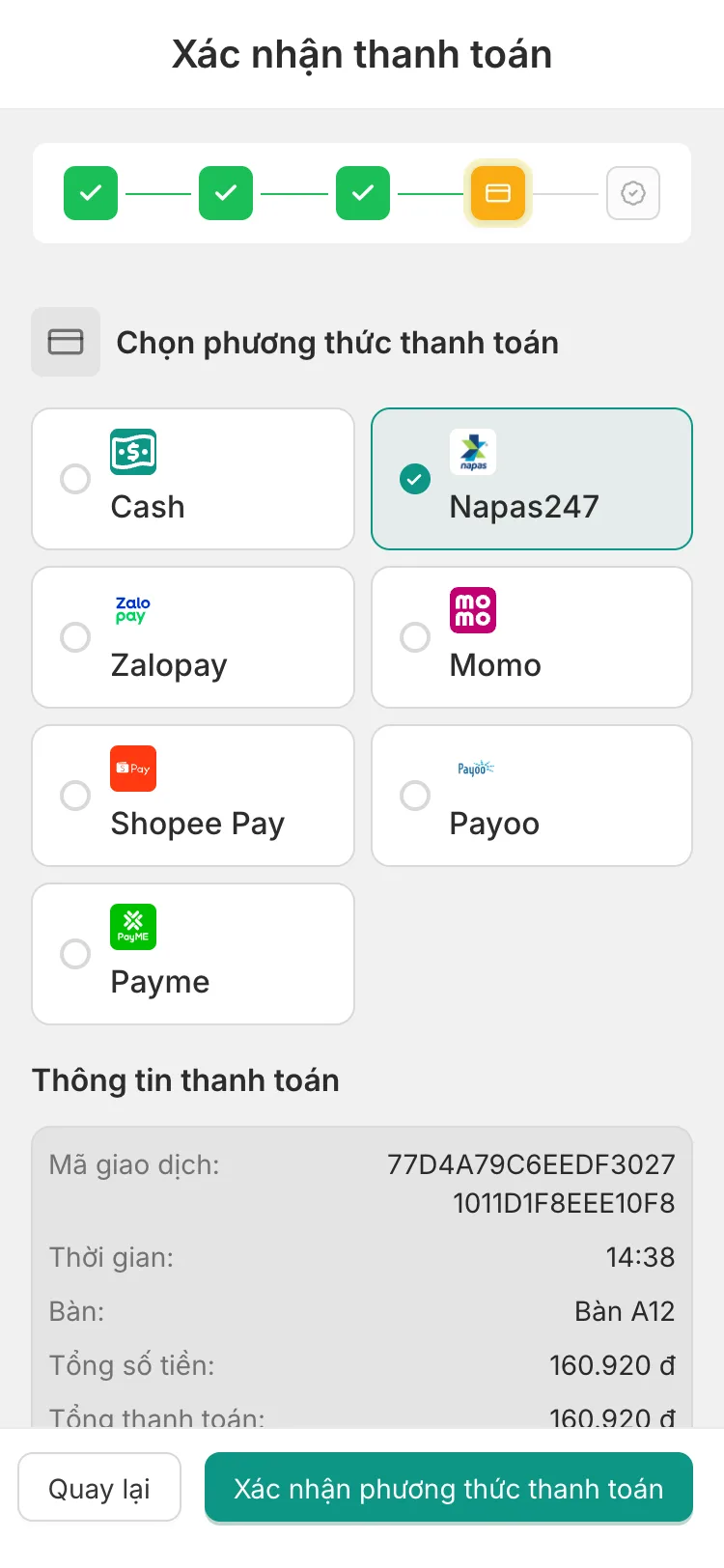
Step 9. Choose how to pay. After confirming the items and the optional VAT invoice details, pick a method (Napas247 is selected here). -
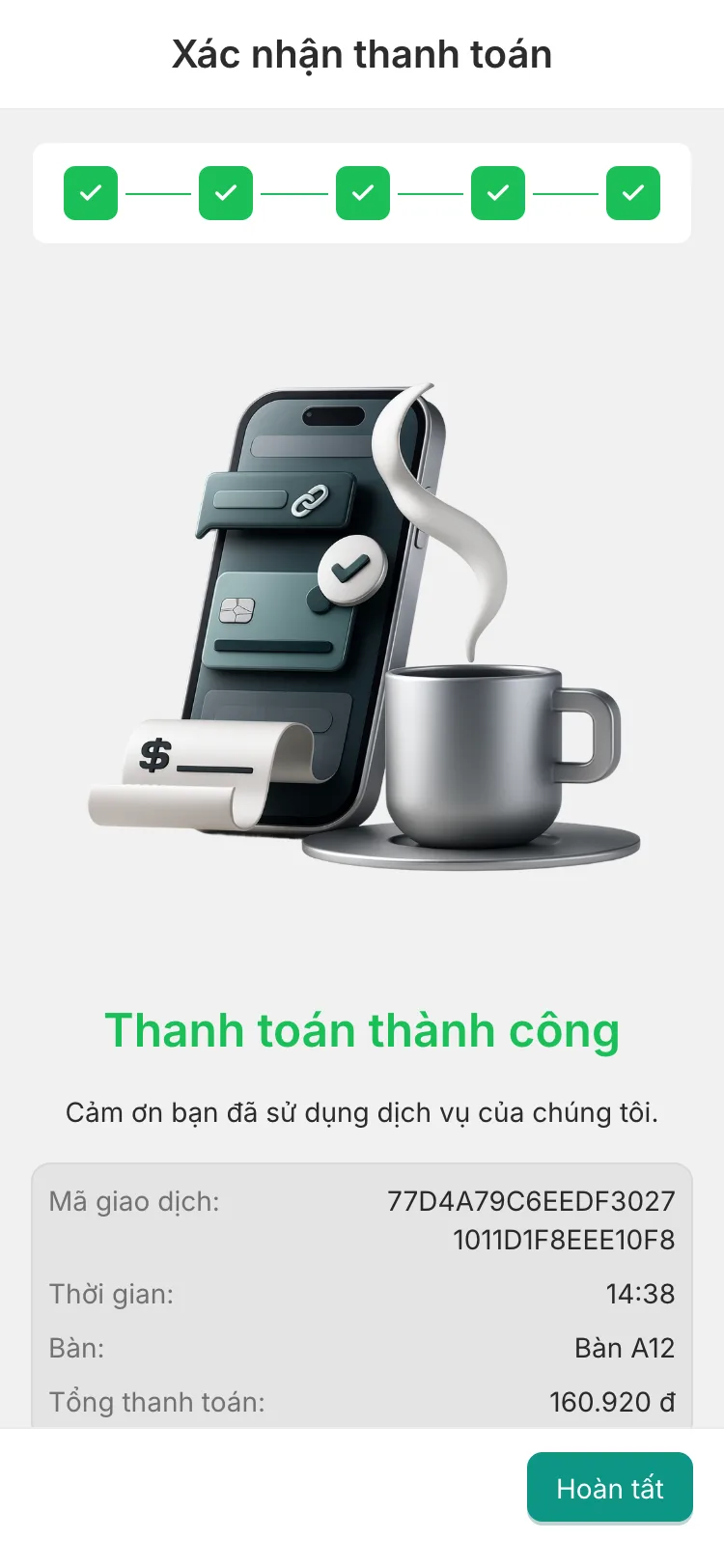
Step 10. Done. The success screen confirms the payment with a transaction reference, the table and the total.
Try it yourself
Open the live app and tap “Mở bàn mới (Chưa đặt)”. Enter any name, add a dish and follow the steps above. On a desktop browser the app appears inside a phone-sized frame; open it on your phone, or narrow the window, for the full-screen mobile layout.